How to Add Video Chapters in WordPress for Better Watch Time & SEO
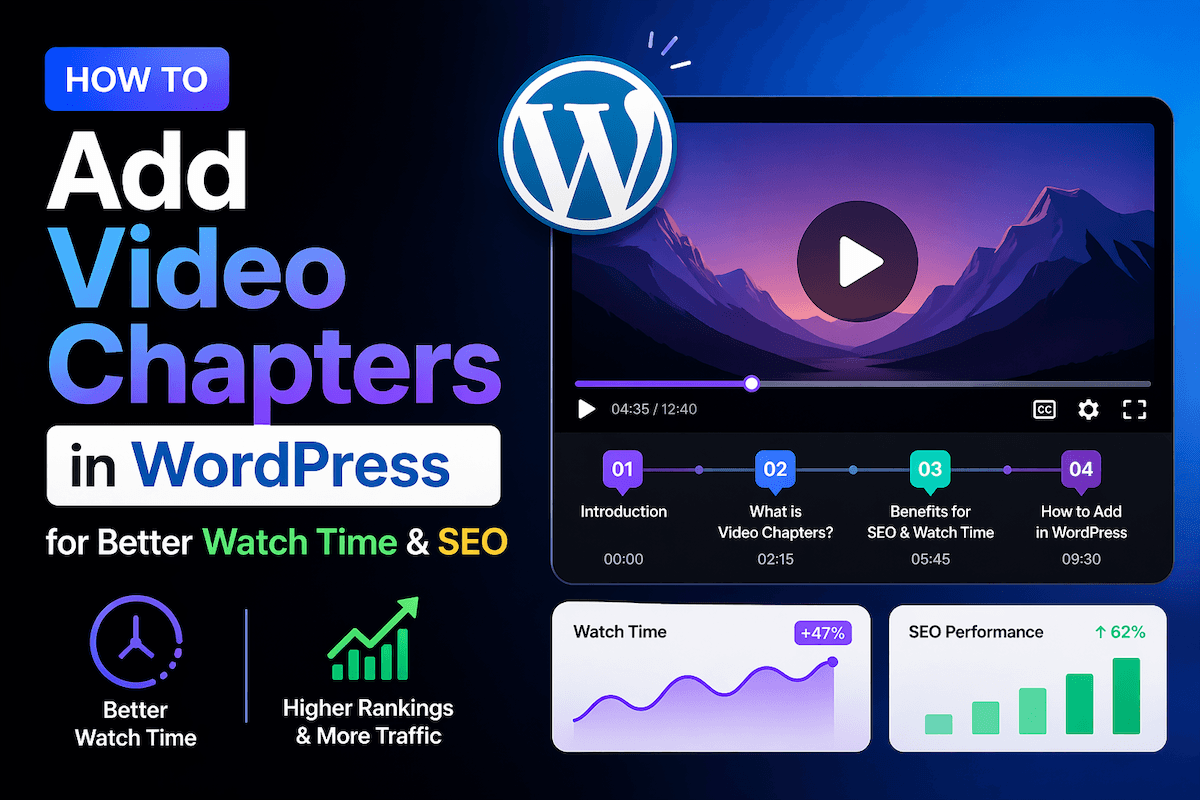
If you’ve ever watched a long YouTube tutorial and seen the clickable video chapter markers on the progress bar — those little dots you can jump to — you already understand why video chapters are so powerful. They turn a passive, linear viewing experience into something navigable and interactive.
On WordPress, that same capability exists. And it does more than improve UX — it directly impacts SEO, watch time metrics, and viewer retention.
This guide explains what video chapters do, why they matter for both your visitors and your search rankings, and how to add them to any video on your WordPress site using MediaHaven Pro.
Video chapters are timestamped markers inside a video that divide it into labeled sections. When a viewer opens a video with chapters enabled, they see a navigation panel — a list of chapter titles with timestamps. Clicking any chapter title jumps the player directly to that moment in the video.
On a 45-minute webinar, chapters might look like:
A viewer who already watched the first half and wants to review the Q&A can jump directly to 38:10 instead of scrubbing through. This is a completely different — and far more valuable — experience than a plain video player.
The conventional assumption is that making it easy to skip parts of your video is bad — viewers will skip to the end and leave. The data says the opposite.
When viewers can navigate to exactly what they need, they engage more:
For tutorial creators, educators, and course producers especially, chapters are the difference between a viewer who watches 10% of a lesson and leaves versus one who completes 80% because they can navigate directly past the parts they already know.
Video chapters create structured, indexable content that search engines can understand and surface.
VideoObject schema with chapter timestamps: When you add chapters to a video in MediaHaven, the structured data (schema.org VideoObject markup) includes the chapter titles and timestamps. Google can use this to understand the specific topics covered in your video — not just the overall title and description.
Clip-level indexing: Google can index individual chapters as separate clips and surface them as rich results in search — a “Key moments” panel that shows specific chapters directly in the SERP. This means your 45-minute webinar could appear in search results for multiple queries corresponding to each of your chapter topics, not just one.
Longer, more specific content: Videos with chapters tend to be longer and more comprehensive — both of which correlate with stronger SEO performance for informational queries.
Improved user signals: When users find what they need and spend more time with your content, the behavioral signals Google measures (time on page, return visits, low bounce from search) improve — which reinforces your rankings.
Tutorials and how-to guides — step-by-step content where viewers may already know early steps and want to jump to a specific stage.
Online course lessons — students revisit specific concepts. Chapters let them navigate a 30-minute lesson without rewatching content they’ve already mastered.
Webinars and recorded live sessions — long recordings with multiple distinct segments. Chapters make recordings genuinely useful instead of just archival.
Product demos and walkthroughs — prospects can jump to the feature section most relevant to their use case rather than watching the full demo.
Podcast-style video content — segmented interview shows where each guest or topic is a distinct chapter.
Long-form documentation — technical explainer videos covering multiple subtopics in sequence.
Video Chapters is a Pro feature in MediaHaven, available in MediaHaven Pro from $79/year.
Here’s exactly how to set it up.
Video Chapters requires MediaHaven Pro. If you’re currently on Lite, you can upgrade at mediahaven.io/pricing. There’s a 14-day money-back guarantee.
After upgrading, go to MediaHaven → Settings → License and activate your Pro license key. Chapter options will now appear in the video editor.
Go to MediaHaven → Videos and click Edit on the video you want to add chapters to.
You can add chapters to any video source: self-hosted MP4, HLS streams MediaHaven supports.
In the video editor, you’ll see a Chapters tab in the meta panel (alongside the Video Source, Subtitles, and other settings tabs).
Click Chapters.
Click Add Chapter.
You’ll see two fields per chapter:
Timestamp — enter the start time for this chapter in HH:MM:SS format. For a chapter that starts at 3 minutes and 15 seconds: 00:03:15. For one starting at 28 minutes: 00:28:00.
Chapter Title — a short, descriptive label for this chapter. Keep it under 50 characters so it renders cleanly in the chapter panel. Examples: “Introduction,” “Setting Up Your Environment,” “The Core Algorithm Explained,” “Live Q&A.”
Click Add Chapter again to add additional chapters.
Chapters should be added in chronological order — earliest timestamp first. If you add them out of order, MediaHaven will sort them by timestamp automatically when rendering the player.
There’s no limit on the number of chapters you can add to a single video.
Click Update to save your video with chapters. The chapters are now stored in your WordPress database alongside the video metadata.
On the video’s single page (its dedicated URL), the chapter panel appears alongside the player. Depending on your single page layout configuration (shown in screenshot), this can render as:
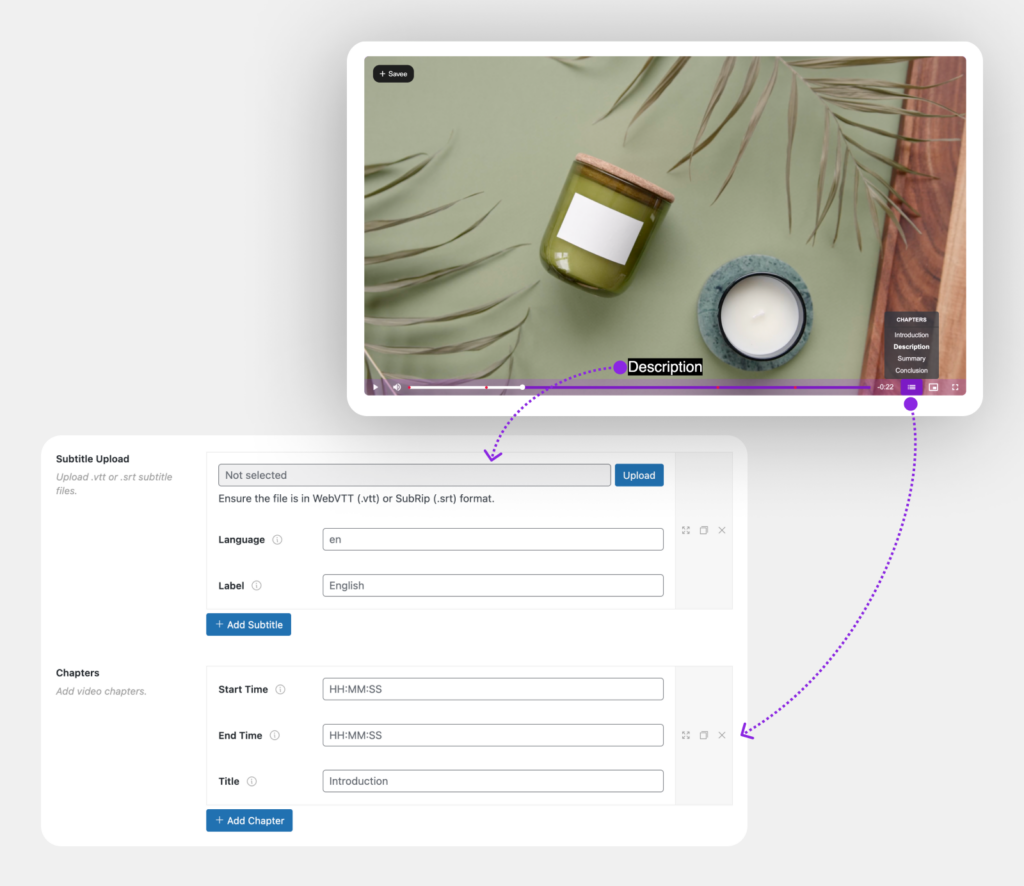
Sidebar chapters panel — a vertical list of chapter titles and timestamps beside the video player. Viewers click any chapter to jump instantly to that moment. The active chapter is highlighted as the video plays.
Below-player chapters list — chapters listed below the player in a compact row format.
The chapter panel is interactive: as the video plays, the currently active chapter is highlighted in the list. If a viewer is watching Chapter 3 and the video progresses past the Chapter 4 timestamp, the highlight moves automatically.
See it live: Video Chapters Demo
For chapters to display well, your single video page layout needs to be configured properly. Go to MediaHaven → Views → [your View] → Single Page tab.
Key settings:
Player layout — for chapter-heavy content, a wider player with the chapter panel in a sidebar is the most usable layout. If your chapters list is very long (10+ chapters), a full-width player with chapters listed below works better.
Sections order — using the drag-and-drop section builder (Pro), arrange the player, chapters, description, and related videos in the order that makes sense for your content type.
Show/hide elements — toggle whether the chapter list is visible, whether timestamps show alongside chapter titles, and whether the active chapter auto-scrolls in the panel for very long chapter lists.
Related videos shortcode — add your gallery shortcode to the Related Posts Shortcode field to show relevant videos below the chapter content. This keeps viewers on your site after the main video ends.
MediaHaven supports both chapters and subtitles on the same video — and the combination is particularly powerful for SEO and accessibility.
Subtitles provide full text transcription of your video. They make your content accessible to deaf and hard-of-hearing viewers, readable in silent environments, and indexable by search engines.
Chapters divide that content into labeled, navigable sections.
Together, they create a video that is:
To add subtitles alongside chapters, go to the Subtitles tab in the video editor and upload your VTT or SRT file.
Chapter titles are the first thing viewers scan to decide whether to jump to a section. A few guidelines:
Be specific, not clever. “Database Query Optimization” is better than “The Technical Bit.” Specific titles help viewers self-select what’s relevant to them and help search engines understand content.
Keep them short. 3–6 words is ideal. Chapter titles get truncated in the panel if they’re too long.
Use action words for tutorial content. “Installing the Plugin,” “Configuring the API Key,” “Testing the Gallery” — these are scannable at a glance.
Start chapters where topics actually change. Don’t create chapters every 30 seconds. Natural breakpoints — topic shifts, new steps, Q&A transitions — should drive where chapters start.
Name your intro “Introduction” or “Overview.” A chapter starting at 00:00 with a clear name anchors the entire chapter panel visually and semantically.
When video chapters are present in MediaHaven, the plugin’s schema.org VideoObject markup is enhanced with hasPart data — each chapter becomes a Clip within the parent VideoObject.
The schema looks like this conceptually:
json
{
  "@type": "VideoObject",
  "name": "Complete Guide to WordPress Video Galleries",
  "hasPart": [
    {
      "@type": "Clip",
      "name": "Introduction",
      "startOffset": 0,
      "endOffset": 195
    },
    {
      "@type": "Clip",
      "name": "Setting Up MediaHaven",
      "startOffset": 195,
      "endOffset": 520
    }
  ]
}
Google uses this data to surface individual chapters as “Key moments” in search results — rich result panels that show each chapter with a thumbnail, title, and timestamp directly on the SERP. Clicking any chapter opens your video at that exact moment.
This means a single long-form video with well-named chapters can rank for and appear in search for multiple queries — each chapter functioning almost like a separate piece of content from Google’s perspective.
Once your chapters are live, monitor these metrics to measure their effectiveness:
Average view duration — available in Google Analytics or your analytics plugin. An increase in average view duration after adding chapters suggests viewers are engaging more deeply.
Return visits — viewers who bookmark videos to return to specific chapters show up as returning users on your video pages.
Bounce rate on video pages — if viewers find what they need, they’re more likely to continue to related content rather than bouncing. Track this on your single video page URLs.
Search impressions for chapter topics — in Google Search Console, check if impressions for queries matching your chapter titles increase after the structured data is indexed.
Video Chapters, along with Ajax Live Filter, VAST video ads, drag-and-drop card builder, WebP image conversion, and unlimited player styles, are all included in MediaHaven Pro.
Pricing:
All plans include a 14-day money-back guarantee and premium support.
👉 See full pricing at mediahaven.io/pricing
Video chapters turn long-form video content from a passive file into an interactive, navigable, and SEO-rich resource. For tutorial creators, educators, course producers, and anyone publishing long videos on WordPress, chapters are one of the most impactful improvements you can make to your video content — with measurable effects on watch time, user experience, and search visibility.
MediaHaven Pro makes adding chapters to any video source (YouTube, Vimeo, HLS, self-hosted) a matter of a few form fields in the WordPress admin — no external tools, no timecode files, no code.
👉 View the live chapters demo 👉 Upgrade to MediaHaven Pro 👉 Start free with MediaHaven Lite
Have a question about chapters for your content type? Ask in the comments below.

Shafinur Ahmed is a Technical Content Writer at WPninjaDevs, creating insightful and practical content for WPNinjaDevs, MediaHaven, and TechIdem. He specializes in WordPress, video technology, web hosting, SaaS, and emerging technologies, helping bus...
MediaHaven makes adding, organizing, and monetizing videos in WordPress simple.
Forget coding—start displaying videos like a pro.