How I Set Up Video Ad Revenue on WordPress: MediaHaven VAST Ads on Kinsta Hosting
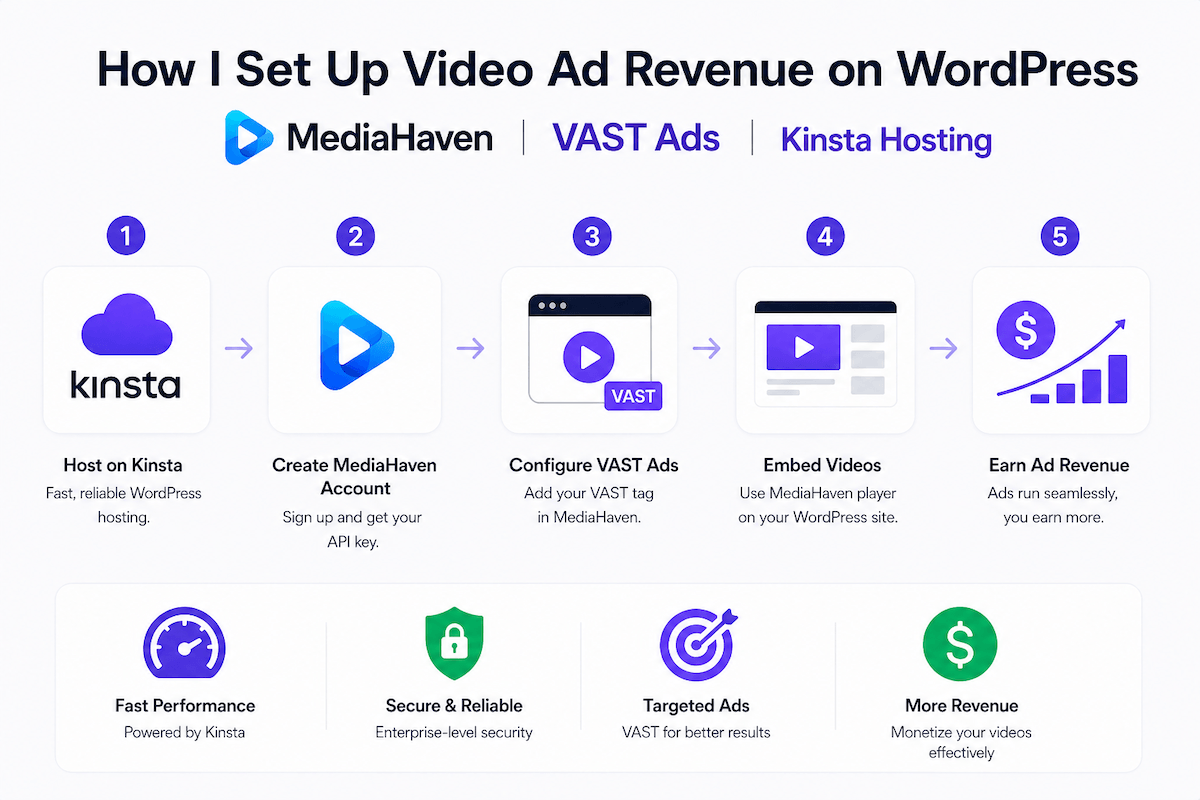
There is a version of this story that most WordPress publishers live inside without realizing it.
You create video content. You embed it on your site — usually by pasting a YouTube URL into a page and hoping the iframe loads fast enough. Your visitors watch, leave, and that is the end of the transaction. YouTube gets the watch time, the engagement signal, and the ad revenue. You get nothing except maybe a small bump in YouTube views that you cannot directly monetize unless you have cleared YouTube’s Partner Program thresholds.
Meanwhile, the global digital video advertising market grew to $74 billion in 2025 — a 25.4% year-over-year increase — and is continuing its climb in 2026. That money does not only flow to streaming platforms and YouTube. It flows to every publisher with a VAST-enabled video player on their site, connected to a programmatic demand source. The difference between earning from your video content and watching someone else earn from it is one correctly implemented plugin.
This is the honest, complete, step-by-step account of how to implement VAST video ads on WordPress using MediaHaven Pro — the only WordPress video gallery plugin with native, purpose-built VAST ad support — running on Kinsta managed hosting, which provides the infrastructure reliability that ad delivery systems genuinely require.
By the end, you will understand exactly how video advertising works, how to configure it correctly from scratch, which ad networks make sense at your traffic level, and what realistic revenue looks like at different stages of growth.
The reason this monetization model works is rooted in human psychology, not advertising technology.
Consider the exact moment a visitor presses play on a video. Something has already happened in their brain before that click. They have read enough of your page to decide the content is worth their time. They have committed to staying for at least the duration of the video. That commitment — that open, receptive, forward-leaning mental state — is what advertisers are paying for.
Ad-supported monetization remains one of the most widely used video revenue models. In this setup, viewers watch content for free, and revenue is generated through ads shown before, during, or alongside the video — such as pre-roll, mid-roll, or VAST formats.
This is fundamentally different from a banner ad, which competes for attention against the content itself. A video ad plays inside the same player the visitor just chose to engage with. The viewer’s attention is physically directed at the screen. That is why video ad CPMs are structurally higher than display CPMs — not because video ads are nicer to look at, but because the attention environment is measurably better.
Video ad CPMs typically fall between $10 and $25 per 1,000 impressions, compared to standard display ad CPMs of $2.50 to $4.50 for banner placements. Video display CPM is often 5–15 times higher than static display equivalents. That gap exists because the attention environment is categorically different.
The critical insight: this is not reserved for large publishers. You don’t need millions of views to benefit from video monetization. Even modest traffic with engaged viewers generates meaningful revenue when the ad infrastructure is correctly implemented.
VAST stands for Video Ad Serving Template. It is the IAB-maintained standard protocol that allows video players to communicate with ad servers — independently of which player or which ad network is involved.
VAST is a standardized format maintained by the IAB Tech Lab. It was created to ensure consistent communication between ad servers and video players, no matter which platforms or vendors are involved.
In practical terms: when your MediaHaven player has a VAST tag configured, it sends a request to your ad network’s server at the moment a visitor presses play. The ad server responds with an XML document specifying which ad creative to load, how long it runs, whether it can be skipped, and where to send impression and completion tracking data. The player reads that XML, loads the ad creative, plays it, and then transitions into your video content.
Many video ad networks support VAST, including YuMe, Tremor, SpotX, and Adap.tv. Alternatively, you can create your own ad network using Google Ad Manager.
This network-agnostic design is why VAST matters: one configuration in MediaHaven connects your site to the entire programmatic video advertising ecosystem. You are not locked into a single network. You can switch demand sources, add competing networks, or run waterfall logic to maximize fill rate — all by updating a single tag URL.
It’s worth noting that YouTube or Vimeo videos that you might have embedded on your website don’t allow third-party ad insertion — unless you’re part of their monetization programs. If you’re hosting your own videos and want to monetize them directly, or need to integrate video ads from a network or ad partner, you’ll need a player that supports VAST.
MediaHaven is that player.
A modern WordPress video setup allows you to control which ad types appear, how often they run, and on which videos. But not all VAST implementations are equal. Most WordPress VAST setups require either a separate video player plugin plus a separate ad management plugin, or complex custom development. MediaHaven builds VAST support directly into the same plugin that manages your gallery, your thumbnails, your SEO schema, and your playback — no separate architecture required.
Here is what MediaHaven Pro’s VAST implementation includes:
Global default: Set a VAST tag and ad position that applies to all videos across all galleries unless overridden.
Per-gallery (View) override: Configure different ad settings for specific galleries. A premium content gallery can use a direct-advertiser VAST tag with higher CPM. A children’s content section can disable ads entirely. A product demo gallery can show WooCommerce product overlays instead of third-party ads.
Per-video override: Set individual VAST tags, positions, and skip settings for specific videos. Sponsored content, featured videos, or high-traffic videos can each have their own monetization configuration without affecting the rest of your library.
Pre-roll: Plays before the video begins. The visitor has committed to pressing play but has not yet received the content. This is the highest-CPM, highest-completion position.
Mid-roll: Plays at a specified timestamp during the video. MediaHaven allows custom timestamp placement — you set the exact second where the ad triggers, rather than accepting a fixed percentage position. For a 10-minute tutorial, you might trigger a mid-roll at the 3-minute mark, after the viewer is clearly engaged.
Post-roll: Plays after the video ends. Lowest CPM and completion rate, but zero disruption to the viewing experience. Useful for content where viewer satisfaction is the priority.
Multiple positions: MediaHaven Pro supports combining ad positions — pre-roll plus a mid-roll, for example — on the same video. Each position fires separately and generates its own impressions.
Configure whether ads are skippable, when the skip button appears (industry standard is 5 seconds), and the button label text. Non-skippable ads command higher CPMs from some networks but create more friction. Start with skippable 5-second countdown, then test non-skippable formats once you have baseline data.
MediaHaven Pro’s promotion system extends beyond third-party VAST ads. You can configure video-driven product overlays that display a WooCommerce product (image, title, price, add-to-cart button) directly inside the player at a specified timestamp.
This is not a banner. It is a contextually timed, clickable product presentation appearing at the exact moment in the video when the product is being discussed or demonstrated. Conversion rates for contextually placed product overlays significantly exceed sidebar banner ads because the viewer’s attention is already on the screen and already on the topic.
A fitness site demonstrating equipment at minute 4 of a workout video. A food blogger mentioning a specific pan at minute 2 of a cooking tutorial. A software review showing the checkout flow of the reviewed product at the moment of the verdict. These are the use cases — and they require zero third-party ad network involvement, which means 100% of the revenue stays with you.
| Plan | Annual Price | Sites Covered | Money-Back |
|---|---|---|---|
| Single Site | $79/year | 1 site | 14-day guarantee |
| 5 Sites | $159/year | 5 sites | 14-day guarantee |
| 10 Sites | $249/year | 10 sites | 14-day guarantee |
| 50 Sites | $499/year | 50 sites | 14-day guarantee |
All plans include full Pro features (VAST ads, Ajax live filters, video chapters, WebP thumbnails, WooCommerce overlays, drag-and-drop builder, unlimited player styles), 1 year of updates and premium support, and staging/development site usage.
The break-even math for the $79/year plan: At a conservative $15 eCPM and one ad per video play, you need approximately 5,267 video plays to recover the annual cost — roughly 144 plays per day. A site with 25,000 monthly sessions and a 20% video play rate generates 5,000 plays per month, recovering the $79 cost in under two weeks.
This is the piece most monetization guides skip: the server behavior when a visitor presses play on an ad-enabled video.
When a VAST ad fires, the following sequence happens in rapid succession:
Under shared hosting, this sequence under even moderate concurrent traffic creates resource contention. Multiple users triggering this simultaneously overwhelm shared CPU and memory allocations. The result is slow ad loads, player timeouts, broken playback states, and lost impressions — zero revenue for those sessions.
Kinsta’s architecture prevents this at the infrastructure level.
Isolated containers per site: Each WordPress site runs in its own Linux container with dedicated Nginx, PHP, MariaDB, and I/O resources. Your video gallery page load never competes with another customer’s traffic.
Server-level caching for gallery pages: The initial page HTML, gallery structure, and thumbnail assets are served from Kinsta’s edge cache — the costly work of generating the page happens once, and subsequent visitors receive a cached response from the nearest Cloudflare edge node. Only the VAST tag request and dynamic tracking events occur live, as intended.
Cloudflare Enterprise CDN for thumbnails: MediaHaven’s WebP-optimized gallery thumbnails are served from 275+ global Cloudflare locations. A visitor in Singapore gets your gallery images from a Singapore CDN node in milliseconds, not from your origin server across the planet.
Load handling under traffic spikes: Independent testing showed Kinsta handling 100 concurrent users with an average response time of 40ms and 0.00% error rate. For video gallery pages where a single viral post or promotional campaign can drive traffic spikes, this error-free load performance is what keeps ad delivery consistent.
97.3% customer satisfaction and 50-second average support response: When an ad configuration breaks, a plugin conflict emerges, or a caching issue affects ad delivery, you need support that responds in under a minute with WordPress-specific expertise. Kinsta’s 2025 support metrics confirm this standard.
| Plan | Monthly | Annual | Sites | Monthly Visits |
|---|---|---|---|---|
| WP 1 (Starter) | $35 | ~$30/mo | 1 | 25,000 |
| WP 2 (Pro) | $70 | ~$59/mo | 2 | 50,000 |
| WP 5 (Business 1) | $115 | ~$97/mo | 5 | 100,000 |
| WP 10 (Business 2) | $225 | ~$193/mo | 10 | 250,000 |
All plans: free SSL, daily backups, free migrations, staging environments, Cloudflare Enterprise CDN, 24/7 expert support in 10 languages, 30-day money-back guarantee.
Your VAST tag comes from a chosen ad network. The right choice depends on your traffic volume, geographic distribution, content niche, and how much overhead you want to manage. Here is a practical breakdown of the most relevant options for WordPress publishers.
Google Ad Manager is the largest programmatic advertising platform in existence. GAM connects your video inventory to millions of active advertisers competing in real-time, producing the highest fill rates and most competitive CPMs available.
How it works for WordPress publishers: Create a video ad unit in GAM’s free interface, generate a VAST tag, paste it into MediaHaven. GAM conducts a real-time auction for each impression and serves the highest-bidding creative.
Accessing premium demand (Google ADX): Google’s premium Ad Exchange (ADX) requires either meeting direct qualification thresholds (typically $5,000+ monthly ad revenue) or working with a certified publishing partner like Ezoic, Mediavine, or a similar network that provides ADX access to qualifying publishers.
CPM range: $10–$25 for Tier 1 (US, UK, CA, AU) video traffic. Lower for Tier 2 and 3 geographies.
Best for: Publishers with 25,000+ monthly sessions who want the highest possible CPM ceiling and fill rate.
Video VAST is a perfect match for websites with installed video players. HilltopAds engages your audience with high-quality video advertisements that deliver exceptional CPM rates. HilltopAds accepts new publishers with mainstream content through a standard review process, making it more accessible than GAM for sites that have not yet qualified for premium programmatic access.
With HilltopAds, you don’t need massive traffic to get started — even smaller audiences can generate revenue. Plus, payouts are available weekly, starting from just $20, every Tuesday.
Best for: Publishers with 5,000–50,000 monthly sessions looking for a fast approval process and reliable video ad payouts.
AdSterra is a well-established network with strong performance in Tier 2 markets (Asia-Pacific, Latin America, Eastern Europe) where some other networks underperform. If a significant portion of your traffic comes from outside the US, UK, or Western Europe, AdSterra’s geographic diversity may produce better overall eCPM than a network optimized primarily for Tier 1 traffic.
Best for: Publishers with diverse international audiences who want competitive CPMs across multiple geographic markets.
The most effective publisher strategy uses GAM as the central ad server with multiple demand sources competing through a waterfall:
MediaHaven’s VAST configuration accepts a single tag URL — the GAM tag you configure handles the waterfall logic internally, giving you multi-network demand management from a single MediaHaven configuration.
This section assumes you have MediaHaven Lite installed on Kinsta, with videos added and at least one gallery (View) created. If not, complete that setup first using the companion guide.
This happens inside your chosen ad network’s interface, not in WordPress.
For Google Ad Manager:
Your tag will look similar to: https://pubads.g.doubleclick.net/gampad/ads?sz=640x480&iu=/NETWORK_ID/UNIT_NAME&...
For HilltopAds:
For other networks: Look for “Video Ad Zone,” “VAST Tag,” or “Ad Code in video format” within the publisher dashboard. All major VAST-compatible networks provide the tag in the same format.
Save this tag URL. You will paste it into MediaHaven in the next step.
Navigate to MediaHaven → Settings → Ads in your WordPress admin dashboard.
VAST Tag URL Paste your VAST tag from your ad network. This serves as the global default for all videos in all galleries unless overridden at the View or video level.
Ad Position Choose the timing of your first ad:
Skip Settings
VAST Tag Preloading Enable this so the VAST request fires slightly before the user actually presses play — reducing the perceived wait time between pressing play and the ad beginning.
Mobile Autoplay Enable muted autoplay fallback for mobile browsers (Chrome and Safari both block autoplay with sound by default). The ad starts muted with a tap-to-unmute UI element visible.
Save your global settings.
For galleries requiring different ad behavior than your global defaults:
Common per-gallery use cases:
For maximum revenue control, individual videos can have their own ad configuration:
When per-video override is worth configuring:
If you are running an e-commerce store alongside your video content, this is arguably the highest-converting monetization option MediaHaven offers.
Best timestamp strategy: Set the overlay to appear 5–10 seconds after the video mentions or demonstrates the product. At that moment, the viewer’s attention and interest in the product is at its peak — dramatically higher conversion intent than a sidebar banner seen while they are focused on the screen.
Before setting your gallery pages to public, verify that ads load correctly.
Method 1: VAST Inspector Paste your VAST tag into Google’s IMA Ad Inspector (available at ima.googlesyndication.com/ima/ad_inspector.html). This validates that your tag returns a proper VAST response and shows you the creative.
Method 2: Incognito Browser Test Open your gallery page in an incognito window. Press play on any video and observe:
Method 3: Browser Developer Console Open Developer Tools (F12) → Network tab. When you press play, watch for:
Common issues and their solutions:
| Issue | Likely Cause | Solution |
|---|---|---|
| Ad does not load at all | VAST tag URL incorrect or account not approved | Verify tag in IMA Ad Inspector first |
| Ad loads but plays in wrong position | Global settings vs. View override conflict | Check View-level override settings |
| Mobile ads not playing | Autoplay blocked by browser | Enable muted autoplay fallback in settings |
| Skip button not appearing | Skip configuration disabled | Enable in MediaHaven → Settings → Ads |
| Video not starting after ad | Kinsta page cache serving outdated config | Clear cache: MyKinsta → Cache → Clear Cache |
| Low fill rate (under 30%) | Traffic geography or new account | Wait 2–4 weeks for network calibration; add secondary demand source |
After finalizing your VAST configuration, clear the Kinsta page cache:
MyKinsta → Sites → Your Site → Tools → Clear Cache
This ensures all visitors receive your updated gallery configuration. Cache clearing takes about 30 seconds and does not affect any site data.
Important: MediaHaven’s VAST requests are client-side JavaScript events — they happen in the user’s browser after the page loads, not at the server level. Kinsta’s page caching and VAST ad delivery are fully compatible. The page HTML is cached (fast); the VAST request fires dynamically when the user interacts (uncached, as intended for ad delivery). There is no conflict to manage.
After going live, enable Kinsta APM for the first 48 hours:
MyKinsta → Sites → Your Site → APM → Enable
Watch for any unusual server load correlated with gallery page visits. MediaHaven’s smart asset loading should keep server-side plugin overhead minimal.
Launching VAST ads is the beginning of a revenue system, not the end. Revenue grows through systematic measurement and optimization.
1. eCPM (Effective Cost Per Mille) Your real revenue per 1,000 impressions after fill rate is factored in. Track in your ad network dashboard. Video eCPM targets:
If your eCPM is consistently below these ranges, investigate fill rate (is your demand source actually filling impressions?) and traffic quality (are impressions coming from genuine engaged viewers?).
2. Ad Completion Rate The percentage of impressions where the viewer watched through the full ad or to the skip point.
| Ad Position | Healthy Completion Rate |
|---|---|
| Pre-roll (skippable 15–30s) | 65–75% |
| Mid-roll (long-form content) | 55–65% |
| Post-roll | 30–45% |
Below-benchmark completion rates usually indicate: ad length too long, content/audience mismatch, or ad position placed too early in the video (for mid-rolls).
3. Revenue Per Session (RPS) Total monthly ad revenue ÷ total monthly sessions. This is the metric that connects ad performance to business impact.
Improving RPS involves three levers:
All three levers are addressable with MediaHaven’s Pro feature set.
Run two identical gallery Views — one pre-roll, one mid-roll — on separate pages with comparable organic traffic. After 2–3 weeks and at least 1,000 impressions per variant, compare:
Most niches favor pre-roll for maximum revenue. Tutorial content and long-form educational videos often outperform in mid-roll because viewer intent to complete the content is high. Entertainment content may see stronger mid-roll completion because engagement maintains throughout.
Ajax Live Filters Searchable, filterable galleries reduce the gap between a visitor arriving and finding the next relevant video. A visitor who discovers three more videos through filtering generates 3x the ad impressions. The indexed lookup table in MediaHaven Pro ensures filter performance stays fast even on libraries with thousands of videos.
Video Chapters Clickable timestamp navigation on long-form content solves the biggest cause of video abandonment: viewers not knowing where the relevant section is in a 20+ minute video. Chapters do not reduce plays — they increase them, because navigable content gets watched more completely.
Related Video Display Configure your gallery Views to display related videos by category or tag after a video plays. This creates a natural content loop that keeps visitors in the player environment and generates sequential ad impressions.
These projections use conservative figures based on current verified CPM data to illustrate realistic outcomes. Actual results vary by niche, geographic audience distribution, content length, and ad network.
| Variable | Conservative |
|---|---|
| Monthly sessions | 10,000 |
| Video play rate | 25% |
| Monthly video plays | 2,500 |
| Impressions per play | 1 (pre-roll only) |
| eCPM | $10 (mixed Tier 1/2 traffic) |
| Monthly revenue | ~$25 |
| Annual revenue | ~$300 |
At this stage, VAST revenue supplements other monetization (affiliate, services, products). MediaHaven Pro ($79/year) is covered. The priority is traffic growth and audience development.
| Variable | Conservative |
|---|---|
| Monthly sessions | 50,000 |
| Video play rate | 30% |
| Monthly video plays | 15,000 |
| Impressions per play | 1.3 (pre-roll + occasional mid-roll) |
| eCPM | $14 (predominantly Tier 1) |
| Monthly revenue | ~$273 |
| Annual revenue | ~$3,276 |
At this level, VAST revenue covers MediaHaven Pro ($79/year), Kinsta hosting ($420/year at Starter plan), and generates significant surplus. The stack pays for itself with meaningful cash flow.
| Variable | Conservative |
|---|---|
| Monthly sessions | 100,000 |
| Video play rate | 35% |
| Monthly video plays | 35,000 |
| Impressions per play | 1.5 (pre-roll + mid-roll on long content) |
| eCPM | $17 (strong Tier 1 in commercial niche) |
| Monthly revenue | ~$892 |
| Annual revenue | ~$10,704 |
At this scale, VAST video ads become a primary revenue channel. The $499/year for MediaHaven Pro (50-sites plan, if managing multiple properties) and $420–$1,380/year for Kinsta represent less than 20% of generated revenue.
At this traffic level, you would typically access premium programmatic demand through an SSP partner, negotiate direct advertising deals, and potentially run house ads for your own products alongside VAST. Revenue calculation becomes highly niche-dependent, but the infrastructure architecture — MediaHaven Pro + Kinsta’s Business tier or above — remains the same. The plugin and hosting scale with your growth; you do not need to rebuild your ad infrastructure as traffic increases.
| Component | Cost | What It Provides |
|---|---|---|
| MediaHaven Lite | Free | Video gallery, 14 sources, schema SEO, caching, lazy load |
| MediaHaven Pro (1 site) | $79/year | VAST ads, Ajax filters, chapters, WebP, WooCommerce overlays |
| Kinsta WP 1 (Starter) | $420/year | Google Cloud hosting, Cloudflare Enterprise CDN, daily backups, 24/7 expert support |
| Total annual stack | ~$499/year | Complete monetized video gallery on enterprise-grade infrastructure |
Break-even at conservative $15 eCPM: approximately 33,267 video play impressions annually — roughly 91 plays per day. A site with 10,000 monthly sessions and 30% video play rate achieves break-even in the first month.
Every day your video content lives on your WordPress site without VAST ad delivery, you are generating attention — the most valuable currency in digital advertising — and capturing none of its monetary value.
By 2026, video monetization will go far beyond traditional social platforms. Smart creators will diversify the way they generate revenue, mixing several ad networks, subscription tools, fan funding, and streaming platforms to profit from the maximum and stay independent.
The stack described in this guide gives you the VAST infrastructure, the hosting reliability, and the complete gallery management system to capture that value on your own domain — without enterprise-level complexity, without a development team, and without minimum traffic thresholds.
Start free: Download MediaHaven Lite → MediaHaven Lite
Unlock VAST ads: Upgrade to MediaHaven Pro → MediaHaven Pricing
Add the infrastructure: Start Kinsta with 30-day money-back guarantee → kinsta.com
Your content has been working. It is time for it to pay.
This article is the companion guide to: How to Build a Fast WordPress Video Gallery with MediaHaven + Kinsta (Complete 2026 Guide).

Shafinur Ahmed is a Technical Content Writer at WPninjaDevs, creating insightful and practical content for WPNinjaDevs, MediaHaven, and TechIdem. He specializes in WordPress, video technology, web hosting, SaaS, and emerging technologies, helping bus...
MediaHaven makes adding, organizing, and monetizing videos in WordPress simple.
Forget coding—start displaying videos like a pro.