How to Build a Fast WordPress Video Gallery with MediaHaven + Kinsta (Complete 2026 Guide)
If you have ever spent hours setting up a WordPress video gallery only to watch it load like dial-up — or worse, watched your visitors bounce before a single video ever played — this guide is for you.
Most tutorials tell you to install a gallery plugin and call it done. What they skip is the part that actually determines whether your gallery succeeds or quietly dies in the background: the infrastructure underneath it.
This is the complete 2026 guide to building a WordPress video gallery that is genuinely fast, SEO-optimized, and ready to generate real business results — using MediaHaven, the performance-first WordPress video gallery plugin, paired with Kinsta managed hosting.
By the time you finish reading, you will have a complete mental model of how these two products work together, a step-by-step implementation plan, real performance benchmarks, and a content strategy that can drive organic traffic to your gallery pages within weeks.
Let’s start with the human side before diving into tools and configuration.
When someone lands on your website and clicks play on a video, something happens in their brain. They have made a small commitment. They leaned forward. For about 3 seconds, they are patient, expectant, ready. Then, if nothing happens — if the thumbnail just sits there, if the player spins, if the page stutters — they leave. Not because they stopped caring about your content. Because friction broke the spell.
Google’s own research shows that 53% of mobile visitors abandon pages that take longer than 3 seconds to load. For video-heavy pages, load time is even more critical because the page must load and the video infrastructure must initialize before anything plays.
Most WordPress video gallery setups fail at this exact moment — not because the content is bad, but because:
The result is a gallery that looks good in a localhost demo and breaks under production conditions.
MediaHaven + Kinsta eliminates all three failure points. Here is how.
MediaHaven is a WordPress video gallery and player plugin developed by WPninjaDevs, a team with over 10 years of WordPress development experience. Unlike video plugins that began as photo gallery tools and retrofitted video support, MediaHaven was architected from day one around video performance.
It supports 14 video sources in a single gallery:
Every source is manageable from a single WordPress admin interface. You can mix sources inside one gallery without custom code.
The WordPress plugin directory has dozens of video gallery options. Here is what separates MediaHaven from the crowd, based on the actual plugin architecture:
Smart Assets Loading Most gallery plugins load their CSS and JavaScript globally — meaning every page on your site carries the plugin’s full weight, even pages with no gallery. MediaHaven loads assets only on pages that actually contain a gallery shortcode. Pages without galleries carry zero overhead. This alone can measurably improve your site-wide Core Web Vitals scores.
Built-In Image Optimization with Lazy Load Every video thumbnail is processed through MediaHaven’s built-in image compression pipeline. The plugin also handles lazy loading for images, videos, and iframes — meaning off-screen gallery thumbnails are not fetched until the user scrolls close to them. On a gallery page with 50 videos, this prevents 49 unnecessary network requests on initial page load.
Schema.org VideoObject Markup — Automatic Every video in your MediaHaven gallery gets automatic schema.org structured data in VideoObject format. This is what qualifies your videos for Google’s rich results — the thumbnail, duration, and description previews that appear directly inside search engine results pages, before a user ever clicks to your site. No SEO plugin or manual markup required.
AJAX-Powered YouTube Feeds YouTube channel and playlist feeds update automatically and use AJAX “Load More” pagination — visitors can browse additional videos without a full page reload. Combined with smart caching of the YouTube API responses, this keeps your gallery fresh without hammering your API quota.
Keyboard Shortcuts Users can control video playback entirely from the keyboard: Space to play/pause, F for fullscreen, M for mute, arrow keys for seek and volume, and number keys to jump to percentage positions. This is a significant accessibility improvement that most gallery plugins skip.
Setup Wizard The guided onboarding wizard introduced in version 1.6.1 walks new users through configuration, YouTube API setup, and gallery creation in a structured flow. Combined with the import/export system (JSON and CSV formats), it makes the plugin manageable for non-technical users and efficient for agencies deploying across multiple client sites.
| Feature | Lite (Free) | Pro |
|---|---|---|
| Video sources (YouTube, Vimeo, TikTok, HLS, and 10 more) | ✅ | ✅ |
| Gallery layouts: Grid, Carousel, Multi-row Carousel | ✅ | ✅ |
| YouTube channel and playlist feeds | ✅ | ✅ |
| Real-time YouTube view and like counts | ✅ | ✅ |
| Schema.org SEO markup (VideoObject) | ✅ | ✅ |
| Smart assets loading (page-level, not global) | ✅ | ✅ |
| Built-in image compression and lazy loading | ✅ | ✅ |
| Keyboard shortcuts for video playback | ✅ | ✅ |
| Ajax “Load More” for YouTube feeds | ✅ | ✅ |
| Import/Export galleries (JSON and CSV) | ✅ | ✅ |
| Gutenberg shortcode block | ✅ | ✅ |
| Video subtitles (WebVTT/SRT) | ✅ | ✅ |
| Video view counter (Ajax) | ✅ | ✅ |
| Like/dislike system (Ajax) | ✅ | ✅ |
| Setup Wizard | ✅ | ✅ |
| Single video page templates | ✅ | ✅ |
| Custom CSS editor | ✅ | ✅ |
| Video chapters (clickable timestamps) | ❌ | ✅ |
| Ajax live filters (search, category, tag, duration, resolution) | ❌ | ✅ |
| VAST video ads (pre/mid/post-roll with custom positions) | ❌ | ✅ |
| WooCommerce video-driven product promotions | ❌ | ✅ |
| Drag and drop video card builder | ❌ | ✅ |
| Player unlimited styles (controls, volume bar, progress bar) | ❌ | ✅ |
| WebP thumbnail conversion | ❌ | ✅ |
| Indexed lookup table for high-performance query | ❌ | ✅ |
MediaHaven Pro Pricing:
| Plan | Annual Price | Sites |
|---|---|---|
| Single Site | $79/year | 1 |
| 5 Sites | $159/year | 5 |
| 10 Sites | $249/year | 10 |
| 50 Sites | $499/year | 50 |
All Pro plans include 14-day money-back guarantee, 1-year updates and premium support, and staging/development site usage. Upgrades receive prorated credit.
Even the most optimized plugin will underperform on the wrong hosting. This is where the gap between a gallery that works and a gallery that converts becomes measurably visible.
Kinsta is a premium managed WordPress hosting provider trusted by over 230,000 businesses in more than 128 countries, including organizations like UNICEF, TripAdvisor, MariaDB, Mint.com, and Ubisoft. Founded in 2013, Kinsta was built from the start by WordPress developers who understood the specific bottlenecks that WordPress hosting creates — and engineered a platform to eliminate them.
Google Cloud Platform with C3D Machines Kinsta runs exclusively on Google Cloud Platform, using C3D compute-optimized virtual machines with AMD EPYC processors and NVMe SSD storage. Each WordPress site runs in its own isolated Linux container (LXC), with dedicated CPU, RAM, and I/O resources — never shared with other customers’ sites. This container-based isolation is the foundational reason Kinsta handles traffic spikes without the resource contention that degrades shared hosting performance.
Cloudflare Enterprise on Every Plan Kinsta includes Cloudflare Enterprise integration on every hosting plan at no extra charge. Most competitors charge separately for Cloudflare enterprise features or don’t offer them at all. What this means for your gallery:
Server-Level Caching (Four Layers) Kinsta manages four distinct caching layers at the infrastructure level: bytecode caching (OPcache), object caching, full-page caching, and CDN caching. Because caching is managed at the server level — below the WordPress application — it is both faster and more reliable than plugin-based caching solutions. This also means you do not need a caching plugin, which removes one more source of plugin conflicts and site bloat.
Nginx, MariaDB, and Latest PHP Kinsta’s stack uses Nginx as the web server, MariaDB as the database engine (an enhanced MySQL alternative), and supports PHP versions from 8.1 through 8.5. PHP 8.1 is over three times faster than PHP 5.6. Running the latest PHP version is one of the single highest-impact performance changes available, and Kinsta makes it a one-click selection in MyKinsta.
The MyKinsta Dashboard Unlike cPanel or generic hosting interfaces, MyKinsta is a purpose-built WordPress management dashboard. Every function — staging environments, cache clearing, backup restoration, PHP version switching, CDN analytics, APM monitoring — is accessible from a clean, modern interface without navigating through generic server management menus.
Real-world independent performance tests consistently show Kinsta at the top end of the managed hosting market:
Kinsta also completed over 12,000 free site migrations in 2025 alone, with average support response time of 50 seconds and a 97.3% customer satisfaction rate in 2025.
| Plan | Monthly | Annual (save ~16%) | Sites | Visits/Month | Storage | CDN |
|---|---|---|---|---|---|---|
| WP 1 (Starter) | $35 | ~$30 | 1 | 25,000 | 10 GB | 100 GB |
| WP 2 (Pro) | $70 | ~$59 | 2 | 50,000 | 20 GB | 200 GB |
| WP 5 (Business 1) | $115 | ~$97 | 5 | 100,000 | 30 GB | 500 GB |
| WP 10 (Business 2) | $225 | ~$193 | 10 | 250,000 | 40 GB | 1 TB |
| WP 20+ | Custom | Custom | 20+ | Custom | Custom | Custom |
All plans include: free SSL certificates, automated daily backups (14-day retention), free site migrations, staging environments, Cloudflare Enterprise CDN, 24/7 WordPress expert support in 10 languages, and a 30-day money-back guarantee.
This is the pairing argument most articles skip, but it is the core of why this combination outperforms either product used with a generic alternative.
Smart asset loading + server-level caching = compound performance. When MediaHaven only loads its CSS and JavaScript on pages that actually contain a gallery, the Kinsta page cache only needs to serve a lightweight HTML document on all other pages. The gallery pages themselves are cached after the first request, so subsequent visitors receive the full gallery experience from edge cache — not from your origin server.
WebP thumbnails + Cloudflare CDN = fast gallery images everywhere. MediaHaven’s Pro thumbnail optimization produces WebP images that are 25–35% smaller than JPEG equivalents at the same visual quality. These compressed thumbnails are then served from the geographically nearest of Cloudflare’s 275+ global edge locations. A visitor in Tokyo sees your gallery thumbnails in milliseconds because they are served from a Tokyo CDN node — not your origin server in Virginia.
Schema.org markup + fast load times = compounding SEO gains. MediaHaven’s automatic VideoObject schema markup makes your videos eligible for Google rich results. But rich result eligibility is only part of the equation — Google’s Core Web Vitals (LCP, INP, CLS) are ranking signals, and Kinsta’s infrastructure keeps those scores in the green. A fast page with proper schema markup compounds SEO performance in a way that neither slow hosting nor schema-free plugins can replicate.
VAST video ads + isolated containers = reliable monetization. When a video ad request fires — the VAST tag fetch, ad creative load, impression tracking — it creates a burst of server-side activity. On shared hosting, this competes with other tenants for the same resources. On Kinsta’s isolated containers, your site’s container handles its own load without interference. For publishers running ad-monetized galleries, this is the difference between consistent ad delivery and intermittent failures that cost impressions.
New site:
Migrating an existing site: Kinsta handles free migrations. Submit your migration request through MyKinsta, provide your current host’s credentials, and Kinsta’s team manages the process with minimal downtime. In 2025, Kinsta completed 12,000+ migrations.
If you plan to use YouTube channel feeds or playlist feeds (one of MediaHaven’s most powerful features), you need a free YouTube Data API v3 key from Google.
Multi-key rotation tip: MediaHaven supports multiple API keys with automatic rotation. Add 2–3 keys under the same API settings to prevent hitting the YouTube API’s daily quota limit on high-traffic gallery pages.
Navigate to MediaHaven → Videos → Add New.
For each video, configure:
For YouTube channel feeds: Go to MediaHaven → Videos → YouTube Feed → enter your Channel ID or Playlist ID. The plugin automatically pulls all video data with smart caching, updating the gallery when new videos are published to the channel.
MediaHaven uses a Views system — each View is a saved gallery configuration with its own layout, display options, and shortcode.
[wpnd_mhpro_views id="1"]In Gutenberg (Block Editor):
Via shortcode (works in all page builders): Paste [wpnd_mhpro_views id="1"] into:
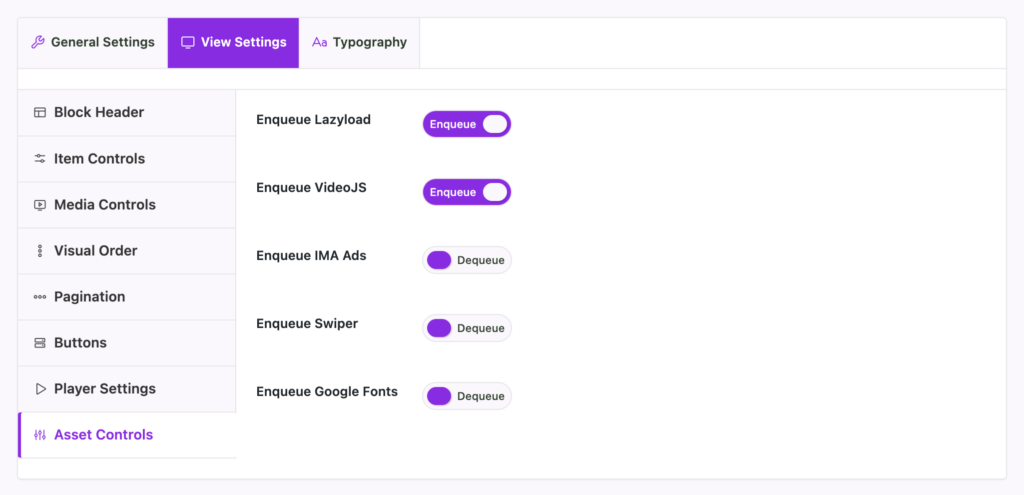
Navigate to MediaHaven → Settings → Assets
This step is skipped by most users and is responsible for the biggest real-world performance differences between MediaHaven installations.
Configure:
Because Kinsta’s CDN automatically covers your domain’s static assets, MediaHaven’s CSS and JavaScript files are cached and delivered from Cloudflare’s edge without any additional configuration required.
After publishing a gallery page, validate the structured data:
Correct VideoObject markup makes your gallery videos eligible for Google’s video rich results in search — the preview thumbnail, video duration, and title that appear as a rich result before the user clicks. This is free organic visibility that most gallery setups never generate because they skip schema implementation.
The base setup above produces strong results. These additional steps push your gallery into elite performance territory.
MediaHaven → Settings → Image:
MediaHaven → Settings → Cache:
Kinsta includes a built-in Application Performance Monitoring tool on every plan.
MyKinsta → Sites → Your Site → APM → Enable
Run APM for 24–48 hours after launching your gallery. The tool surfaces:
MediaHaven’s smart caching and asset loading should keep plugin-related overhead minimal in APM data. If you see unexpected load correlated with gallery pages, check the asset loading configuration.
Run your gallery page through PageSpeed Insights (pagespeed.web.dev) and target:
| Metric | Target | Impact |
|---|---|---|
| LCP (Largest Contentful Paint) | Under 2.5 seconds | Direct ranking signal |
| INP (Interaction to Next Paint) | Under 200ms | Responsiveness ranking signal |
| CLS (Cumulative Layout Shift) | Under 0.1 | Layout stability ranking signal |
| TTFB (Time to First Byte) | Under 800ms | Indirect ranking signal |
| Overall load time | Under 3 seconds (4G) | User experience / bounce rate |
With MediaHaven properly configured on Kinsta, all five of these are achievable without additional optimization plugins.
A fast gallery earns you rankings. A well-optimized gallery compounds them. Here is the SEO architecture that makes gallery pages rank.
Video gallery pages rank best for specific, intent-driven queries rather than broad category terms.
Instead of targeting:
Target:
These long-tail queries have lower competition, clearer commercial intent, and map cleanly to the focused gallery pages you are building.
In MediaHaven’s video editor, treat each video’s title and description as individual SEO content:
name)description in schema)uploadDate in schema, which Google uses for freshness rankingRather than one large gallery with all content, build dedicated gallery pages per topic:
/tutorials/ — Grid gallery filtered to tutorial category/product-demos/ — Carousel gallery of product demonstration videos/case-studies/ — Grid of client result videos/courses/ — Full course video library with chapter navigation (Pro)Each page targets a distinct keyword cluster, earns dedicated backlinks, and provides a cleaner user experience than a single sprawling gallery. MediaHaven’s category and tag system maps directly to this architecture.
Your existing blog content is the fastest traffic channel for new gallery pages:
Each internal link distributes PageRank to your gallery pages, increases their authority, and creates additional indexable entry points.
Content creators and YouTubers who want to keep viewer engagement on their own domain rather than feeding watch time and algorithmic signals to YouTube. Every view on your MediaHaven gallery is a visit to your site — not YouTube’s.
E-commerce businesses running product demo videos. Video on product pages consistently increases purchase intent. MediaHaven’s WooCommerce integration (Pro) lets you place add-to-cart overlays directly inside the video player at the moment of maximum interest.
Educators and course creators publishing tutorial libraries. MediaHaven’s video chapters (Pro) let long-form educational content be navigated like a structured course, improving completion rates and user satisfaction without requiring a dedicated LMS platform.
Agencies building client sites who need one plugin that works across Gutenberg, Elementor, WPBakery, Divi, and Beaver Builder — and produces consistent results across multiple Kinsta-hosted client accounts managed from a central MyKinsta dashboard.
News and media publishers with high-traffic video content who need proven infrastructure reliability. Kinsta’s isolated containers and Cloudflare Enterprise CDN provide the performance floor that media sites need for consistent ad delivery and user experience under traffic spikes.
Digital marketers running video-led campaigns who need fast-loading gallery landing pages and measurable performance data. Kinsta’s built-in analytics (bandwidth, cache hit rates, response times) give you the data needed to optimize campaign landing pages without relying on third-party monitoring tools.
Copy this checklist and work through it before you publish:
The difference between a video gallery that converts and one that quietly fails is not content quality. It is infrastructure and configuration.
Every plugin you will find recommends itself. What this guide has shown you is the specific combination of architectural decisions — smart asset loading, server-level caching, CDN thumbnail delivery, automatic schema markup, isolated hosting containers — that produces galleries that are fast under real-world conditions, not just in a blank test environment.
MediaHaven Lite is free and available right now at MediaHaven Lite.
MediaHaven Pro pricing: mediahaven.io/pricing — from $79/year, 14-day money-back guarantee
Kinsta offers a 30-day money-back guarantee, so you can validate the performance difference on your actual site before you commit.
Build the gallery your content deserves — one that your visitors actually reach, engage with, and return to.
Ready to monetize your video gallery with VAST ads and generate revenue from every video play? Read the companion guide: How I Set Up Video Ad Revenue on WordPress: MediaHaven VAST Ads on Kinsta Hosting.

Shafinur Ahmed is a Technical Content Writer at WPninjaDevs, creating insightful and practical content for WPNinjaDevs, MediaHaven, and TechIdem. He specializes in WordPress, video technology, web hosting, SaaS, and emerging technologies, helping bus...
MediaHaven makes adding, organizing, and monetizing videos in WordPress simple.
Forget coding—start displaying videos like a pro.